
Feedback forms
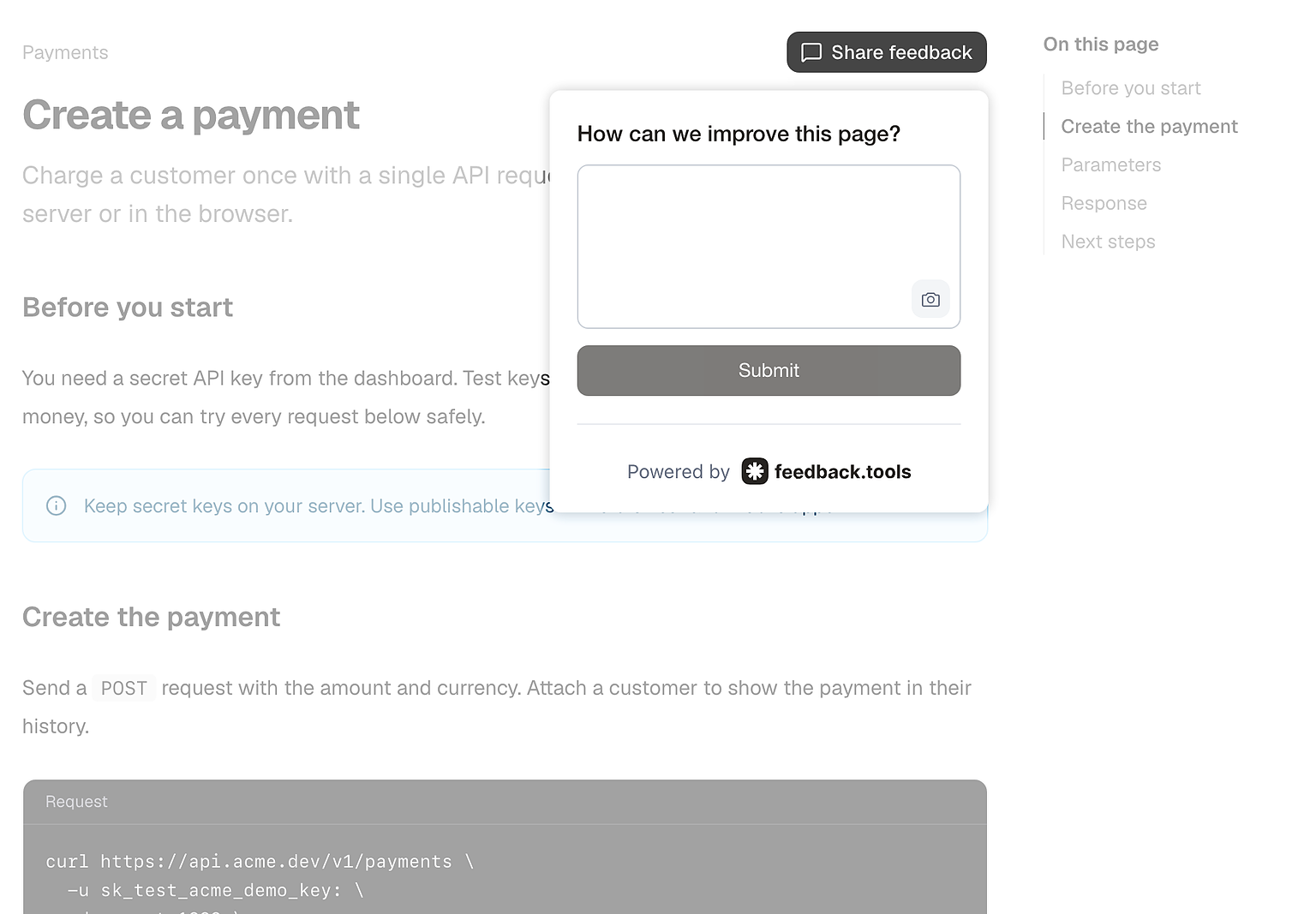
A plain feedback form for your product: one open question and a text field, without scoring. Users open it, write what they think, send it and get back to work.
A user notices something in your product. A field that does not save, a report they wish existed, a label that confused them. To tell you, they have to open a support chat or file a ticket, describe the case and wait for a reply. Most people don't bother. The thought stays with them and never reaches you.
Surveys work in the other direction: you pick the moment and ask the question. A feedback form waits for the moment the user picks. You can now add one to your product: one open question and a text field, without scoring. The user opens it, types, sends and is back at work. The thought reaches you while it is still fresh.
Setting it up
A feedback form is a survey without a rating step. In the survey wizard, pick General: Open Feedback Survey from the type list, next to CSAT, NPS and CES. The default question is "What would you like to share with us?". Change it to match the place the form lives in.
Style settings start at the text step, since there is no rating screen to configure. The answer is a free text field (Ask) or a list of options to pick from (Suggest choices). Skip is not offered here, because the form would then ask nothing. If the survey collects contact details, that screen follows as usual.
Where to put it
There are three ways to open the form.
Show feedback button in bottom-right corner in the survey's trigger settings keeps a button on the edge of the page. It stays in sight while the user works, and one click opens the form.
To open the form from your own UI, a Send feedback item in the account menu or a link on a settings page, turn on Manual event tracking and call open from that action:
ftools('open', '__SURVEY_ID__');The user never leaves the page. The call is described in the methods reference.
To keep the form permanently on a page, pass root on init and it renders inline in the container you give it. That and the rest of the options are in the init reference.
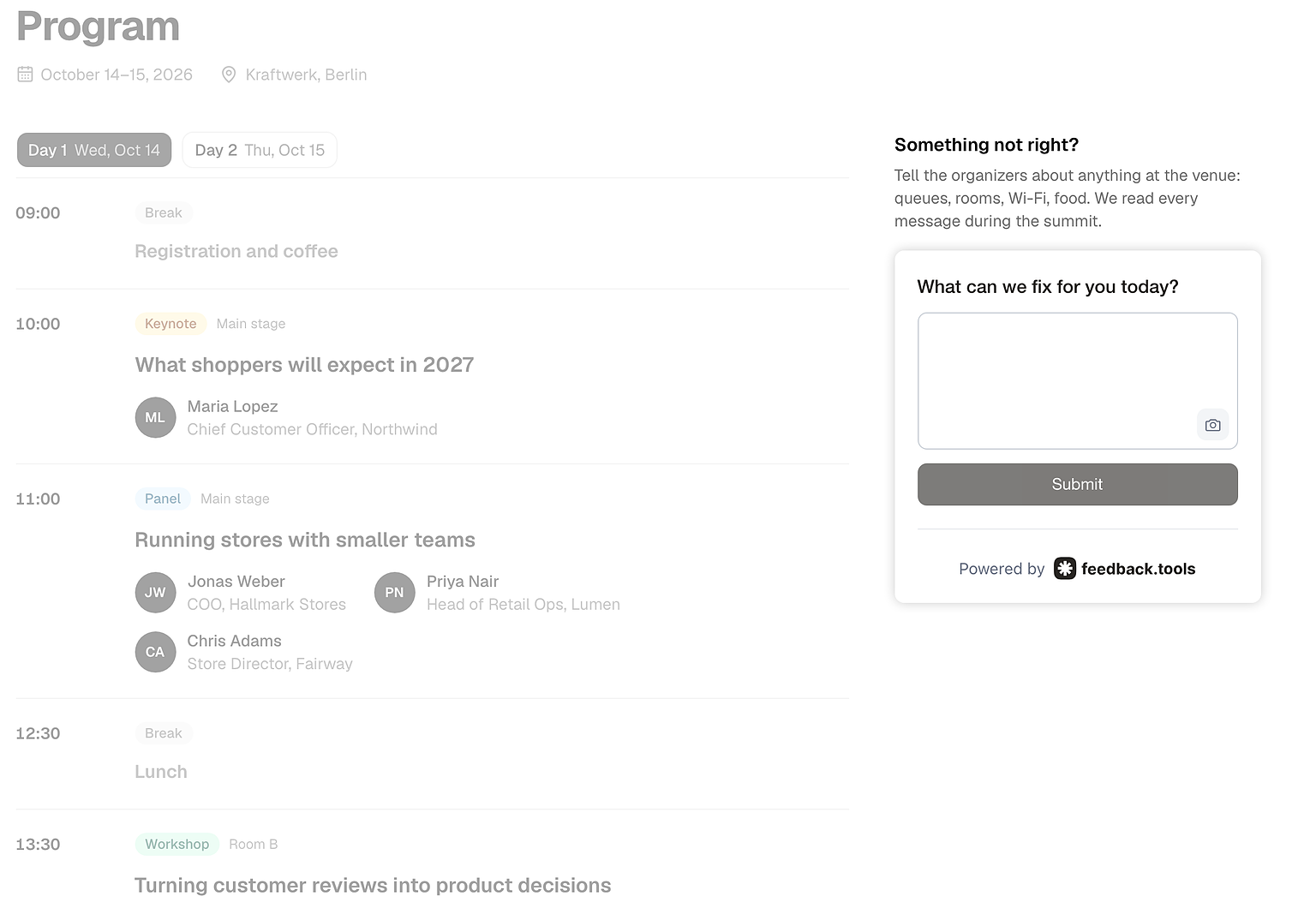
Both examples are live demos: the docs page with a feedback button and the conference page with an embedded form.
Responses and analysis
The text goes through the same analysis as the follow-up text on other surveys: themes and findings come out in the language set in the survey's AI settings, whatever language the respondent wrote in. That setting is covered in Product context.