
Styling
The package ships with minimal default styles. To use them:
import 'react-feedback-surveys/index.css';The defaults are only a starting point. Your CSS changes colors, radius, shadows, font, sizes, spacing, and the look of every part and state, so one widget can look like a chat bubble, a sticky note, a blueprint, or a retro OS window. The markup, the step flow, and the icons stay the same.
Pick the level you need:
- Themes: light, dark, or auto. One prop, no CSS.
- Common Recipes: brand color, font, corners, and shadows in a few lines of CSS.
- Catalog Styles: a ready-made look from the style catalog, copied and changed to fit your brand.
- Custom Styles: your own CSS for every part and state.
If a rule of yours doesn't apply, see How Styles Combine.
Themes (Dark Mode)
The theme prop switches the built-in color palette: light, a ready dark theme, or auto. No CSS is needed on your side.
| Value | Result |
|---|---|
'light' | Default palette. Same as leaving the prop out. |
'dark' | Ready dark palette. |
'auto' | Follows the visitor's system color scheme and switches when it changes. |
<Popup theme="auto">
  <Survey /* ... */ />
</Popup>- Set it on the outermost component:
PopuporSurface. Components inside inherit the theme. AthemeonSurveyalone doesn't recolor theSurfacearound it. - The nearest
themewins.theme="light"inside atheme="dark"component restores the light palette. autois pure CSS (prefers-color-scheme), so there's no flash of the wrong theme with server rendering.- Your
--ft-*variables always win over the built-in theme, wherever you set them.
To toggle the theme from your own switcher, pass its state to the prop: <Popup theme={isDark ? 'dark' : 'light'}>.
Common Recipes
Set --ft-* variables on :root to change every survey on the page, or on a class of your own to change one (see Custom Styles). The full list is in CSS Variables.
Brand color. The submit button and a checked checkbox use the accent color. Unset, it follows the text color:
:root {
  --ft-color-accent: #6d4aff;
  --ft-color-accent-text: #fff;
}
Your site's font. The widget doesn't take the page font on its own. Give it the same font stack as your site; the font files come from your site:
:root {
  --ft-font-family: Inter, system-ui, sans-serif;
}
Corners. --ft-surface-radius rounds the card, the fields, and the submit button:
:root {
  --ft-surface-radius: 0;
}
No shadow. For a survey placed on a card of your own, or a flat popup:
:root {
  --ft-surface-shadow: none;
  --ft-popup-shadow: none;
}
Popup behind your header or chat widget. Raise its z-index, 49 by default:
:root {
  --ft-popup-z-index: 1000;
}
Tailwind classes. classNames takes utility classes for single parts. With Tailwind CSS v4, import the library styles into the components layer from your CSS entry, not from JavaScript. Then utilities win over them (see How Styles Combine for why):
@import "tailwindcss";
@import "react-feedback-surveys/index.css" layer(components);<Survey
classNames={{
submit: 'rounded-full bg-indigo-600 text-white hover:bg-indigo-500',
field: 'rounded-lg border-gray-300'
}}
/* ... */
/>CSS Modules and CSS-in-JS. Anything that gives you a class name works the same way:
import styles from './Feedback.module.css';

<Survey
  classNames={{ submit: styles.submit }}
  /* ... */
/>
Catalog Styles
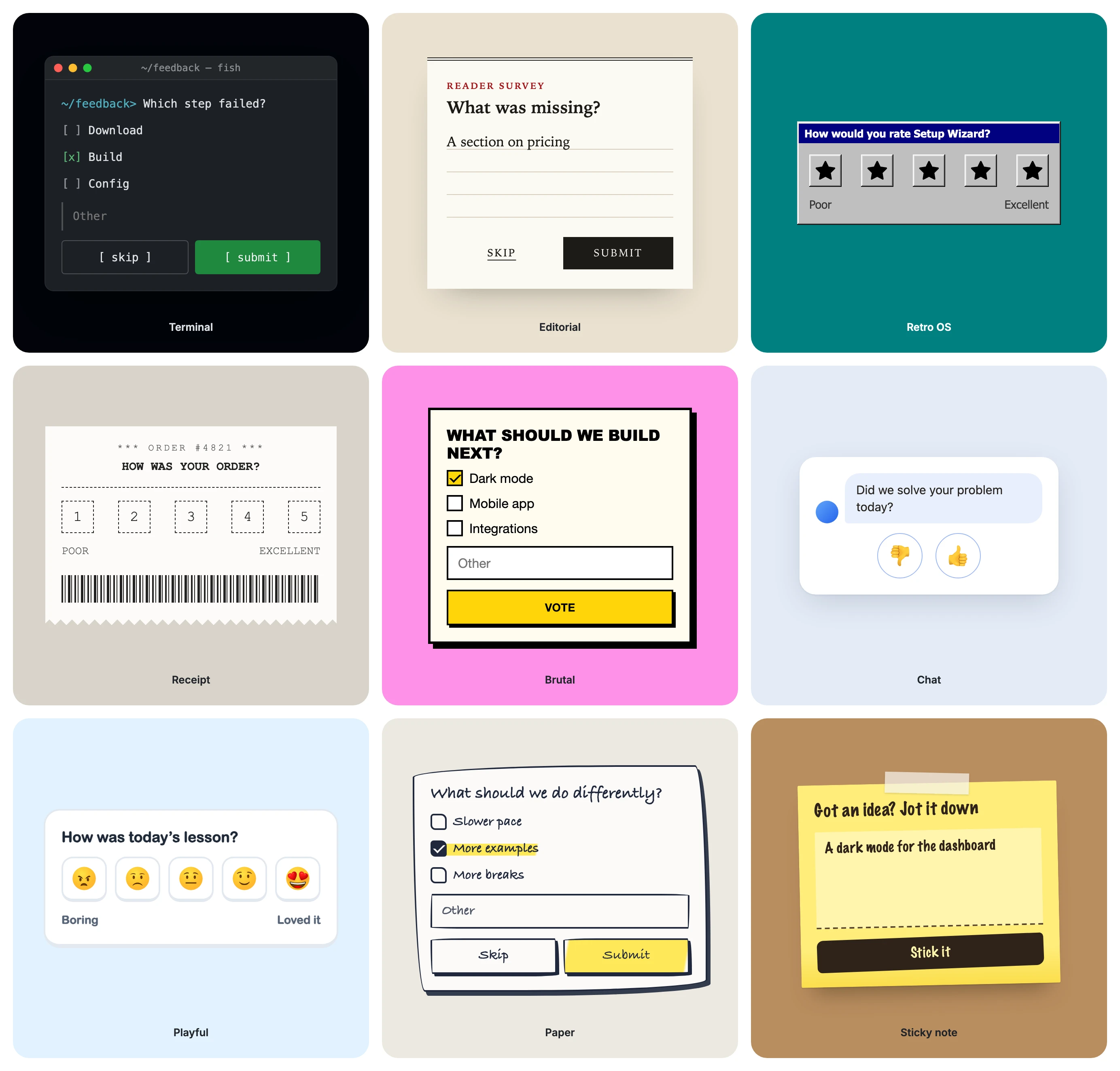
The style catalog in Storybook has ready-made styles, from minimal to a hand-drawn sketch, each paired with a use case.
Each style is a class, such as terminal. Its CSS also expects two wrapper classes:
ftools-surveyon every survey;ftools-embedfor an inline survey, orftools-popupfor a popup.
The Feedback Tools SDK puts the same classes on the host of its widget. So one stylesheet works both in your app and in the SDK widget.
To use a style:
-
Open a style in the catalog. Its page shows it on every survey type.
-
Click Copy above its CSS and paste the CSS into your stylesheet, outside any
@layer. -
Wrap the widget in an element with the style's classes, and pass the theme named in the comment at the top of the CSS:
<div className="ftools-survey ftools-embed terminal">
  <Surface theme="dark">
    <Survey /* ... */ />
  </Surface>
</div>
For a popup, wrap
Popupand useftools-popupinstead offtools-embed:<div className="ftools-survey ftools-popup terminal"> <Popup theme="dark"> <Survey /* ... */ /> </Popup> </div> -
Change the CSS to fit your brand, starting with the
--ft-*variables at the top.
Catalog styles are examples to copy, not part of the package: they aren't versioned or updated with the library, and the CSS you paste is yours to change.
The same CSS works with and without a shadow root. Every rule has two selectors: ::part() for a widget inside a shadow root, and [part~="..."] for a widget in the page's own DOM:
.ftools-survey.terminal::part(choice checked),
.ftools-survey.terminal [part~="choice"][part~="checked"] {
  /* ... */
}
Write your own stylesheet the same way when it has to work in both places.
Custom Styles
Common Recipes set variables on :root and change every survey on the page. To style one survey only, put the variables on a class of your own and add classes for single parts. A custom style works on top of any built-in theme:
.brand-style {
  --ft-color-text: hsl(250 60% 20%);
  --ft-color-bg: hsl(250 100% 98%);
  --ft-surface-radius: 0;
}

.brand-submit {
  text-transform: uppercase;
}<Surface className="brand-style">
<Survey
classNames={{ submit: 'brand-submit' }}
/* ... */
/>
</Surface>For a ready-made start, see Catalog Styles.
The reference sections below list everything you can change: CSS Variables, Custom Classes, and Shadow DOM Parts. Storybook's Styling Cases section shows more combinations.
How Styles Combine
Three rules define every override:
- Library styles are defaults. All of them live in one CSS cascade layer,
@layer react-feedback-surveys. Any CSS of yours outside a layer wins over them, whatever its specificity and load order. A plain.my-buttonbeats the library's.button:hover:not(:disabled). - Values flow through variables. Colors, radius, shadows, and font come from CSS variables. From weakest to strongest: library defaults → the
themeprop → your--ft-*variables.--ft-*set on any ancestor reach the widget, also across a shadow DOM boundary. - Rules come from classes.
classNameandclassNamesattach your classes to specific parts; inside a shadow root::part()does the same. A rule that sets a color itself owns that color in every theme. The built-in theme does not adjust it.
If your own CSS uses cascade layers, layer order decides instead of rule 1:
-
Tailwind CSS v4: import the styles into the
componentslayer from your CSS entry instead of JavaScript, so they beat Preflight and utilities beat them:@import "tailwindcss"; @import "react-feedback-surveys/index.css" layer(components); -
A global reset outside layers (normalize, Bootstrap Reboot,
* { margin: 0 }) also wins over the defaults, the same as your classes do. Move it into a layer declared before the library's. Layer order is fixed by first appearance, so import the library styles from this same file, not from JavaScript:@layer reset, react-feedback-surveys; @import "bootstrap/dist/css/bootstrap-reboot.css" layer(reset); @import "react-feedback-surveys/index.css";
Inside a shadow root page styles don't reach the widget, so only the CSS you put in that root takes part. To style it from the page, use Shadow DOM Parts.
What's Stable
The styling API follows semver. These names don't change or disappear outside a major release, and every change to them is listed in the changelog:
- the
--ft-*variables from CSS Variables; - the
classNameskeys and part names from Custom Classes, and the state names from Shadow DOM Parts; - the
theme,className, andclassNamesprops; - the cascade layer name,
react-feedback-surveys.
Everything else is internal: the library's own class names (hashed, like _submit_1f9cv_274), the DOM structure between parts, and the default values. A minor release can change the default look; your variables and rules keep working on top of it. Catalog styles are examples, not part of this API.
CSS Variables
Set these variables on :root, on a wrapper class, or on a shadow host. Color variables take any CSS color: #6d4aff, rgb(), hsl(), oklch(), a color name, or transparent. Color defaults below are for the light theme. theme="dark" changes all of them except --ft-color-star.
Colors
| Variable | Default | What it changes |
|---|---|---|
--ft-color-text | hsl(30 8% 14%) | Headings and body text. |
--ft-color-bg | hsl(0 0% 100%) | Survey background. |
--ft-color-muted | hsl(222 11% 46%) | Labels and secondary text. |
--ft-color-control | hsl(214 20% 96%) | Background of inputs and buttons. |
--ft-color-border | hsl(214 14% 83%) | Borders of inputs and containers. |
--ft-color-outline | hsl(218 14% 65%) | Focus outline. |
--ft-color-accent | --ft-color-text | Submit button and a checked checkbox. |
--ft-color-accent-text | --ft-color-bg | Text and check mark on top of the accent. |
--ft-color-star | hsl(42 99% 64.5%) | Fill of a highlighted star in the stars scale. |
--ft-color-error | hsl(32 95% 44%) | Validation borders and outlines. |
--ft-color-error-text | hsl(32 95% 32%) | Error text of a failed screenshot capture. Darker than --ft-color-error for text contrast. |
--ft-color-shadow | hsl(0 0% 0%) | Color of the default surface and popup shadows. |
Surface and popup
| Variable | Default | What it changes |
|---|---|---|
--ft-surface-radius | 8px | Corners of the card, inputs, and submit button. |
--ft-surface-padding | 20px | Card padding. |
--ft-surface-padding-mobile | 20px | Card padding on screens narrower than 400px. |
--ft-surface-shadow | see below | Shadow of an inline survey card. none removes it. |
--ft-popup-shadow | see below | Shadow of the popup card. none removes it. |
--ft-popup-z-index | 49 | Z-index of the popup. |
Other
| Variable | Default | What it changes |
|---|---|---|
--ft-font-family | 'Helvetica Neue', 'Arial Nova', Helvetica, Arial, sans-serif | Font of all text, inputs, and buttons. |
--ft-checkbox-size | 20px | Size of a choice checkbox. The box stays centered on the first text line at any size. |
A custom shadow value replaces all default layers. The defaults are:
:root {
  --ft-surface-shadow:
    0 0 1px hsl(0 0% 0% / 12%),
    0 1px 2px hsl(0 0% 0% / 6%),
    0 2px 4px hsl(0 0% 0% / 4%);

  /* the surface shadow plus a wider layer that lifts the popup above the page */
  --ft-popup-shadow:
    0 0 1px hsl(0 0% 0% / 12%),
    0 1px 2px hsl(0 0% 0% / 6%),
    0 2px 4px hsl(0 0% 0% / 4%),
    0 16px 40px -12px hsl(0 0% 0% / 14%);
}
Custom Classes
Survey accepts a flat classNames object: one key per part. Your classes win over the library defaults (see How Styles Combine). Every part also carries a part attribute with the same name in kebab case, for styling it inside a shadow root (see Shadow DOM Parts).
Names follow four rules: buttons are named by their action (submit, skip, attach, remove, dismiss), lists are plural and their items singular (choices → choice, points → point), a part inside another part takes its name as a prefix (point-icon, success-icon), and a state is the part's name plus an adjective (checkboxChecked, fieldInvalid), so each state class lands on exactly one part.
| Key | Part | Applies to |
|---|---|---|
root | root | Survey wrapper |
head | head | Row with the title |
title | title | Question, step question or thank-you text |
body | body | Content under the head |
successIcon | success-icon | Icon on the success step |
scale | scale | Rating scale: the points and the legend |
points | points | Row of rating points |
point | point | Single rating point (button) |
pointIcon | point-icon | Emoji, star or thumb inside a point |
pointScore | point-score | Number inside a point |
legend | legend | Min and max captions under the scale |
form | form | Form on the feedback and email steps |
subtext | subtext | Text above the email field |
choices | choices | List of predefined choices |
choice | choice | Single choice (the clickable label) |
checkbox | checkbox | Visible checkbox square of a choice |
field | field | Every text field: feedback textarea, "Other" input, email input |
attach | attach | Screenshot capture button |
attachment | attachment | Attached screenshot row |
remove | remove | Button that removes an attachment |
error | error | Capture error row |
dismiss | dismiss | Button that hides the capture error |
actions | actions | Wrapper for the submit and skip buttons |
submit | submit | Submit button |
skip | skip | Skip button |
The layout components have their own: Popup's className styles the popup (part popup), Popup's classNames.surface and Surface's className style the card (part surface), and Popup's classNames.close styles the close button (part close).
Form keys apply to both the feedback and the email step. To style one step only, scope the rule with a step key.
State and step keys add a class next to the part's own while it is in that state, so combine the two:
| Key | Added to | While |
|---|---|---|
choiceChecked | choice | The choice is checked |
checkboxChecked | checkbox | Its choice is checked |
fieldInvalid | field | The field shows an error |
attachBusy | attach | A screenshot is being captured |
pointIconFilled | pointIcon | The star is filled (stars scale only) |
rating, feedback, contact, success | root | That step is shown |
A disabled button needs no key: use .my-submit:disabled.
import { Survey } from 'react-feedback-surveys';
import 'react-feedback-surveys/index.css';

<Survey
  classNames={{
    point: 'my-point',
    choice: 'my-choice',
    checkbox: 'my-checkbox',
    checkboxChecked: 'my-checkbox-checked',
    submit: 'my-submit'
  }}
  type="csat"
  points={5}
  scaleStyle="numbers"
  question="How would you rate your satisfaction with our product?"
  minLabel="Very unsatisfied"
  maxLabel="Very satisfied"
  thankYouMessage="Thanks for your feedback!"
  onScoreSubmit={({ value }) => {/* ... */}}
  onFeedbackSubmit={({ value, text }) => {/* ... */}}
/>
.my-point { border-radius: 10px; }
.my-checkbox-checked { background-color: #6d4aff; }
.my-submit:disabled { opacity: 0.4; }Shadow DOM Parts
When the widget renders inside a shadow root (as the Feedback Tools SDK does), page CSS can't reach its classes. Every part carries a part attribute instead, so page CSS styles it through the shadow host with ::part():
.my-host {
  --ft-color-bg: #f7f5ff;
  --ft-surface-radius: 18px;
}

.my-host::part(submit) {
  color: #fff;
  background-color: #6d4aff;
  border-radius: 999px;
}

.my-host::part(choice checked) {
  background-color: #ede9fe;
}
Part names are the classNames keys in kebab case, plus popup, surface, and close from the layout components. The full list is in Custom Classes.
States come as a second part name, because ::part() can't look at attributes or neighbours:
| State | Selector |
|---|---|
| Checked choice | ::part(choice checked), ::part(checkbox checked) |
| Invalid text field | ::part(field invalid) |
| Screenshot capture in progress | ::part(attach busy) |
| Filled star | ::part(point-icon filled) |
| Current step | ::part(root rating), feedback, contact, success |
Pseudo-classes and pseudo-elements of the part itself work: :hover, :focus-visible, :disabled, ::before, ::after, ::placeholder. Selectors that look inside or around a part don't: no :has(), no ::part(a) .child, no ::part(a) + ::part(b).
Outside a shadow root ::part() matches nothing, but the part attributes are still there: .my-host [part~="choice"][part~="checked"] styles the same part in the page's own DOM.